FlaviBot Week: Radio mode puts your server on air
Radio mode: your server, on air
Turn it on. Tune in. Never stop.
Today's reveal is Radio mode. It turns a FlaviBot into your server's own radio station. The station lives in a channel you pick. It plays its own rotation, airs your jingles between songs and takes your members' requests. Your hosts run it from the dashboard or from their phone, without joining voice.
Radio mode is in beta and reaches servers gradually. Every server can go on air for free; Server Premium Silver and up keeps the station on air around the clock, even with nobody listening.
📻 Go on air, stay on air
Press Go on air and FlaviBot joins your station's home channel, a voice or Stage channel, and stays there while people listen. With Server Premium Silver and up it stays on air around the clock, even with nobody in voice; without it, the station goes off air once nobody has listened for ten minutes. You can also do it from Discord with /station on-air.
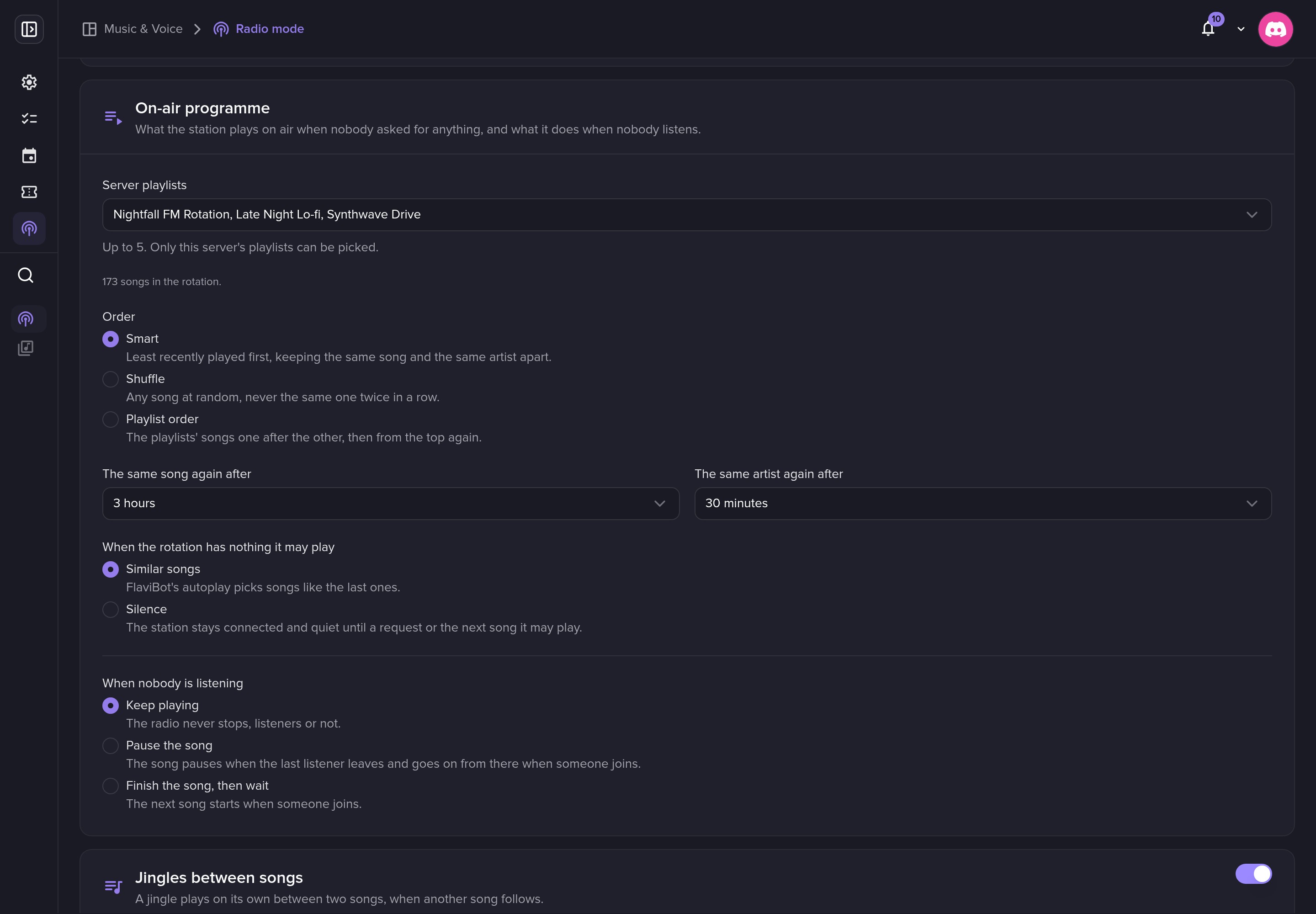
On air, the station plays its rotation: up to five of your server playlists, in a smart order that keeps the same song away for three hours and the same artist for thirty minutes. Shuffle and playlist order are there too. When the rotation runs dry, it plays similar songs, or nothing if you prefer.
You choose what happens when the room empties: keep playing (the default, because a radio never stops), pause the song until someone joins, or finish the song and wait. Members who try to pull the bot into another channel are invited to join the station instead, and the music controller shows that you are on air.
🎙️ The Studio, from anywhere
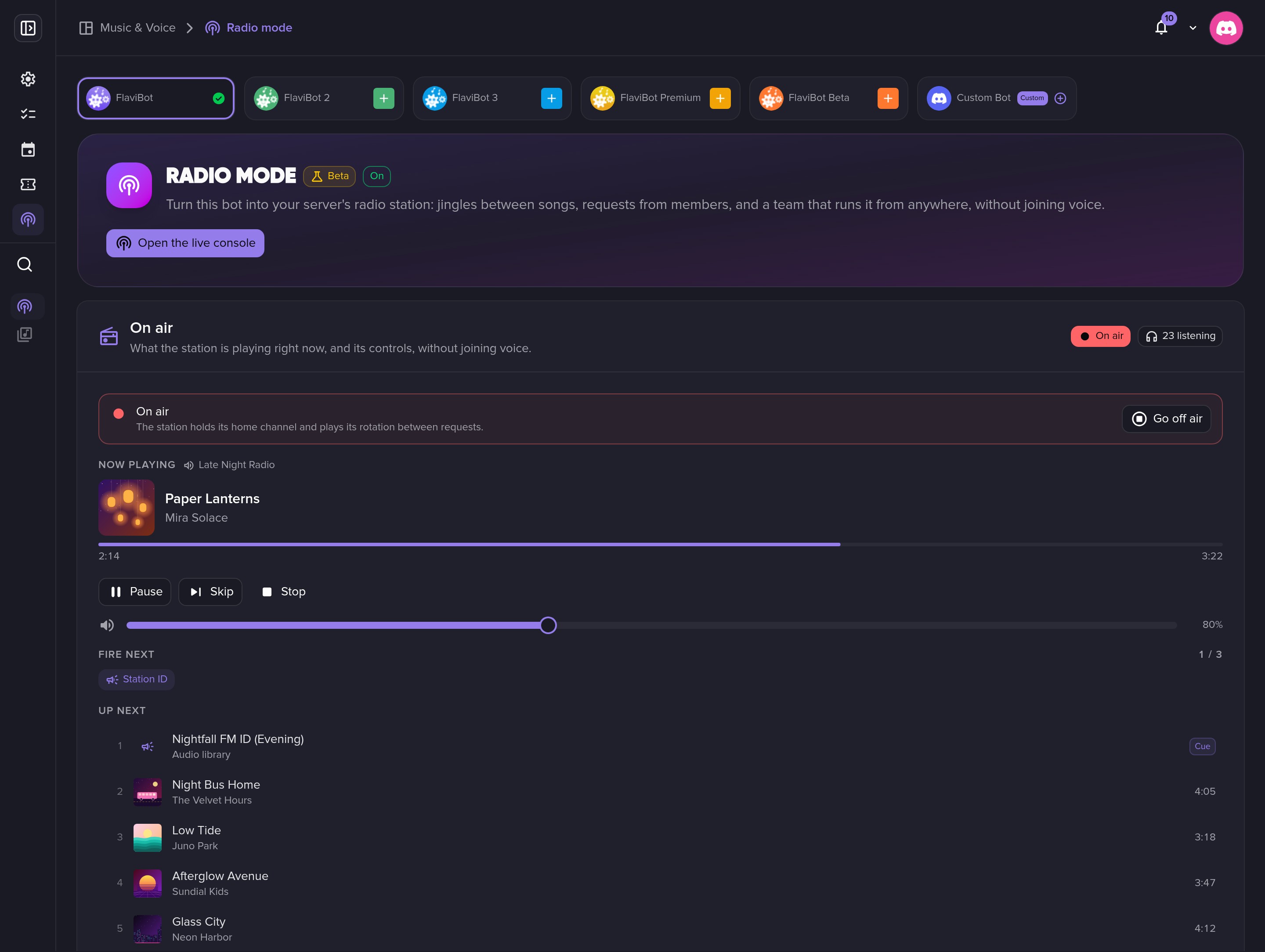
Open Music & Voice → Radio mode and you land in the Studio. The On air card shows the song and its cover, how far along it is, what comes next and how many people are listening. From there a host can pause, skip, stop, change the volume or add a song.
Open the live console puts the live half of the Studio on one page made for a phone: the On air card, the cart wall and the request line.
🎛️ The cart wall
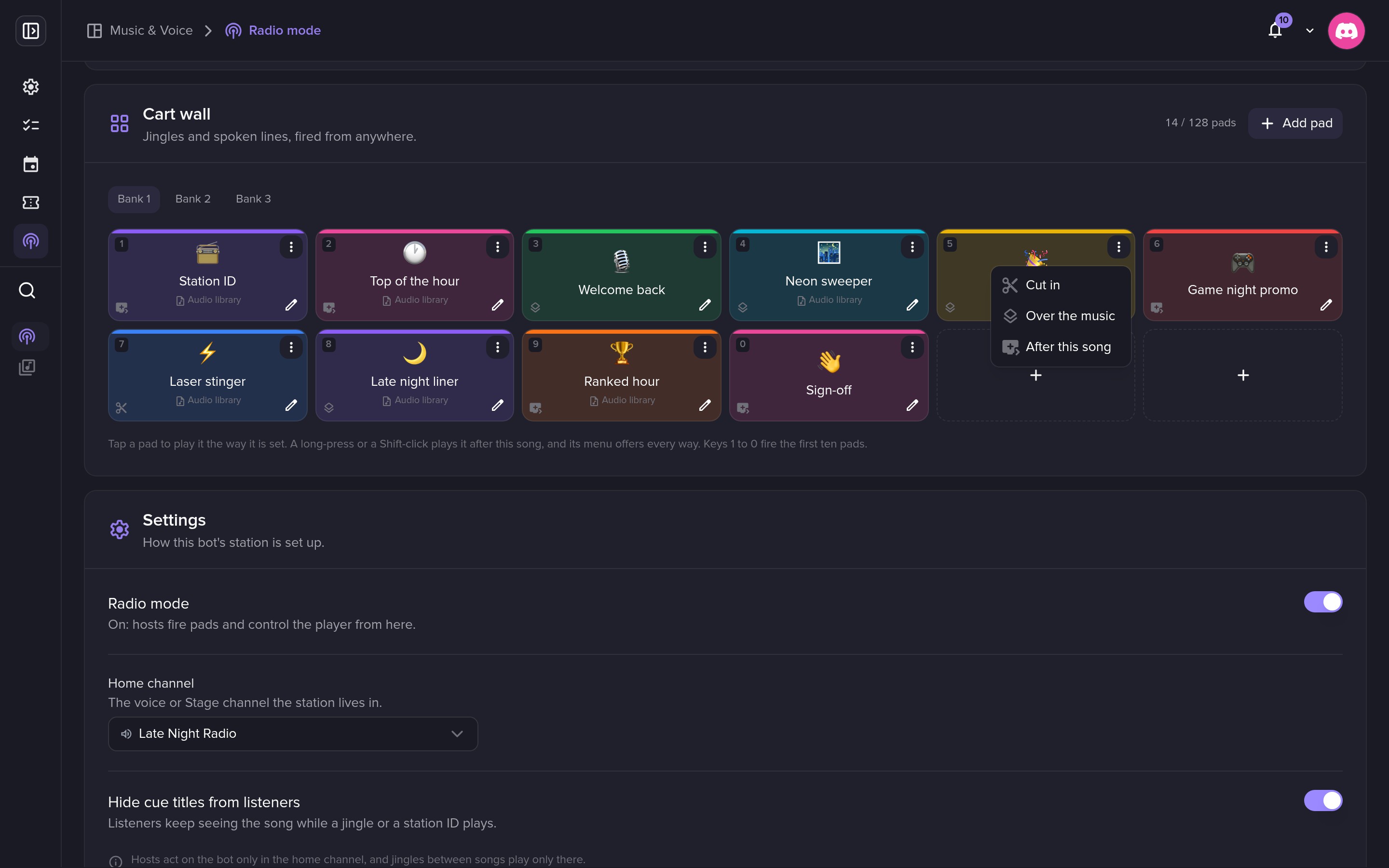
Radio studios fire their jingles from a cart wall: a grid of buttons. Your station has one. Each pad plays a spoken line (FlaviBot reads your text on air) or a file from your Audio library: a station ID, a jingle, a sweeper, a stinger.
Every pad decides how it airs:
- Cut in: the song stops, the cue plays, the song picks up where it was.
- Over the music: the music lowers and the cue plays on top.
- After this song: the cue waits for the next break.
Give each pad a label, an emoji and a colour, and spread them over banks of 12. On a keyboard, keys 1 to 0 fire the first ten.
🔁 Jingles between songs
Let the station do the imaging by itself. Turn on Jingles between songs, pick how often (every song, or every few songs) and what to play from (your station IDs, your jingles, chosen pads). FlaviBot airs the cue that has waited longest, never into silence and never after a skipped song.
📨 Requests and votes
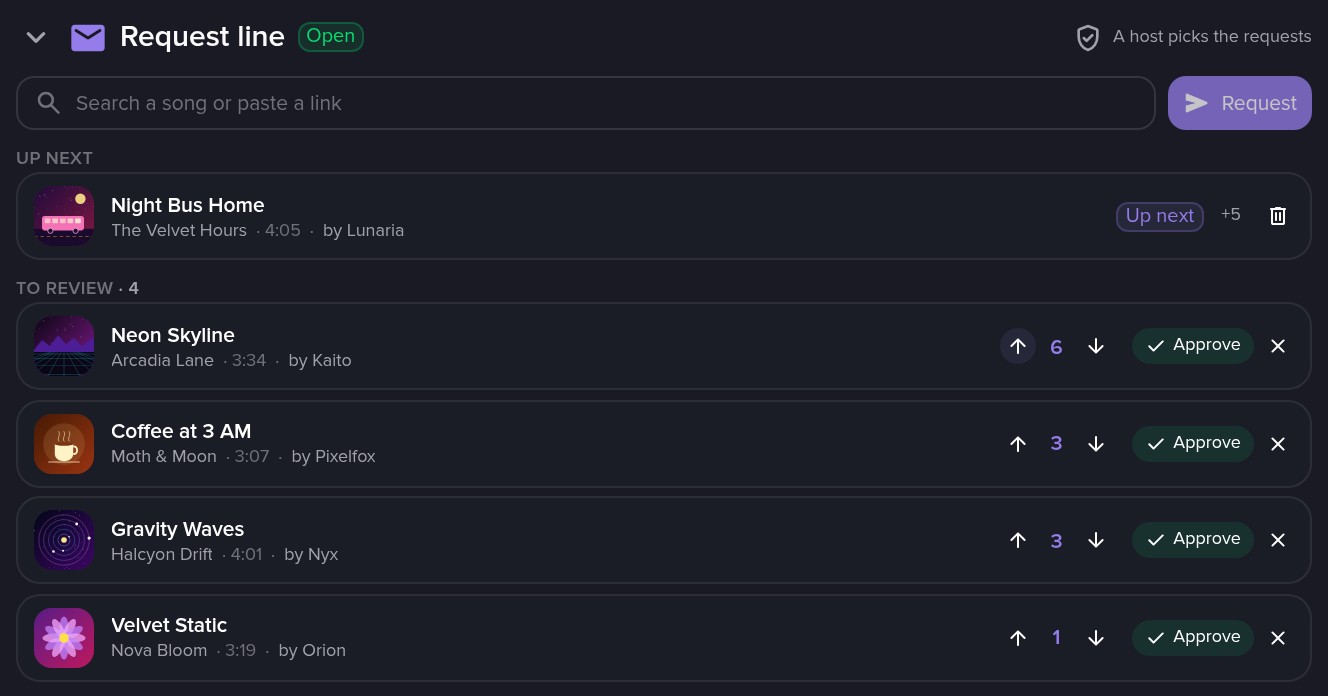
Open the request line and your members ask for songs from the music player, with /station request, by right clicking a message with Apps → Request on air, or simply by typing a song in the music controller's channel.
You decide how a request gets on air: host review, listener votes or instant. Set who can request, how many votes it takes, a cooldown and the longest song you accept. Asking for a song that is already waiting adds a vote to it.
🎚️ Your own Audio library
Upload the sound of your station: station IDs, jingles, sweepers, liners, promos, stingers, show openers and closers, voice tracks and music beds. Each type has its own maximum length, from 10 seconds for a stinger to 5 minutes for a music bed.
Your files stay with your server. Only FlaviBot plays them, in voice: no preview, no public link, no download. Play next queues a file right after the current song, and Pin to cart puts a jingle on the wall in one click.
👥 A station team
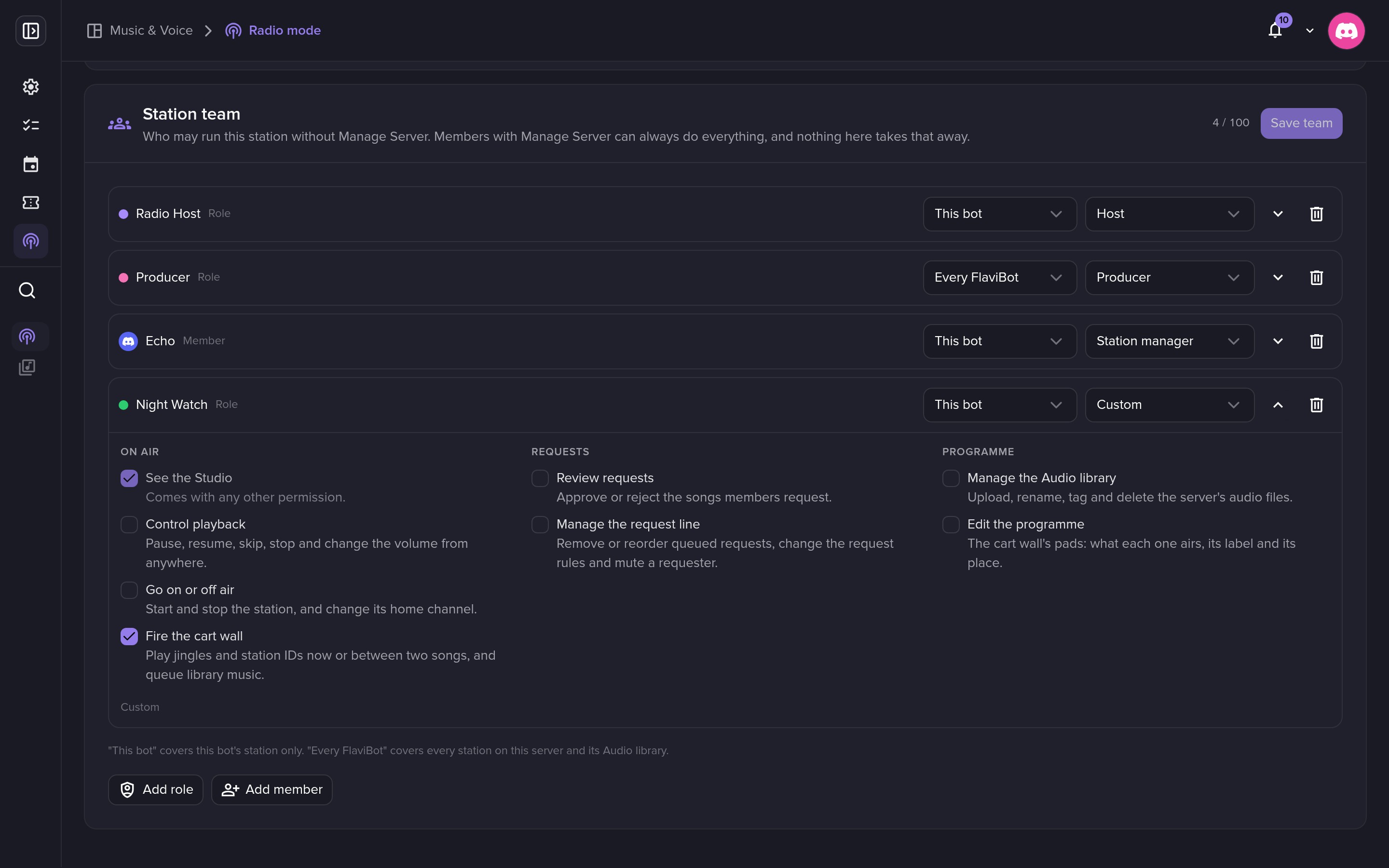
The Station team card hands parts of the station to a role or to one member: Host runs the show live, Producer prepares the library and the cart pads, Station manager does both, and Custom gives exactly what you tick. Hosts do not need Manage Server: they open the dashboard straight into the Studio.
Get started
- In your dashboard, open Music & Voice → Radio mode and turn it on (this takes Manage Server).
- Pick a home channel: a voice or Stage channel FlaviBot can join.
- Upload a station ID in Music & Voice → Audio library, or type a spoken line.
- Add your first pads on the Cart wall.
- Pick your playlists in On-air programme, then press Go on air.
- Open the Request line and add your hosts in Station team.
Premium
Every server can run its station for free, with everything live on air: the rotation, the cart wall, jingles between songs and requests. Staying on air around the clock, even with nobody in voice, comes with 24/7, from Server Premium Silver. Premium also makes the station bigger.
| Free | Silver | Gold | Platinum | |
|---|---|---|---|---|
| Going on air | ✓ | ✓ | ✓ | ✓ |
| Stays on air with nobody listening | ✗ | ✓ | ✓ | ✓ |
| Cart pads per station | 8 | 32 | 64 | 128 |
| Cart fires per hour | 20 | 60 | 60 | 120 |
| Station team entries | 3 | 20 | 50 | 100 |
| Jingles & IDs | 1 | 50 | 150 | 300 |
| Audio library storage | 10 MB | 250 MB | 1,000 MB | 3,000 MB |
| Uploads per day | 10 | 30 | 60 | 100 |
All FlaviBot Week, Lifetime Premium costs one payment of the yearly price, until October 15. Keep your station on air for life.
Comments (0)
Login to like and comment
No comments yet