Setting up a panel
A panel is the message members click, plus every setting that applies to the tickets it opens. Create one, fill it in, save, and the bot posts the message for you.
On the dashboard, open Tickets, then Ticketing, then Add. A panel needs a name (up to 50 characters, unique on your server). The name is not just a label: it is the title of the panel message members see, and it appears on the ticket itself.
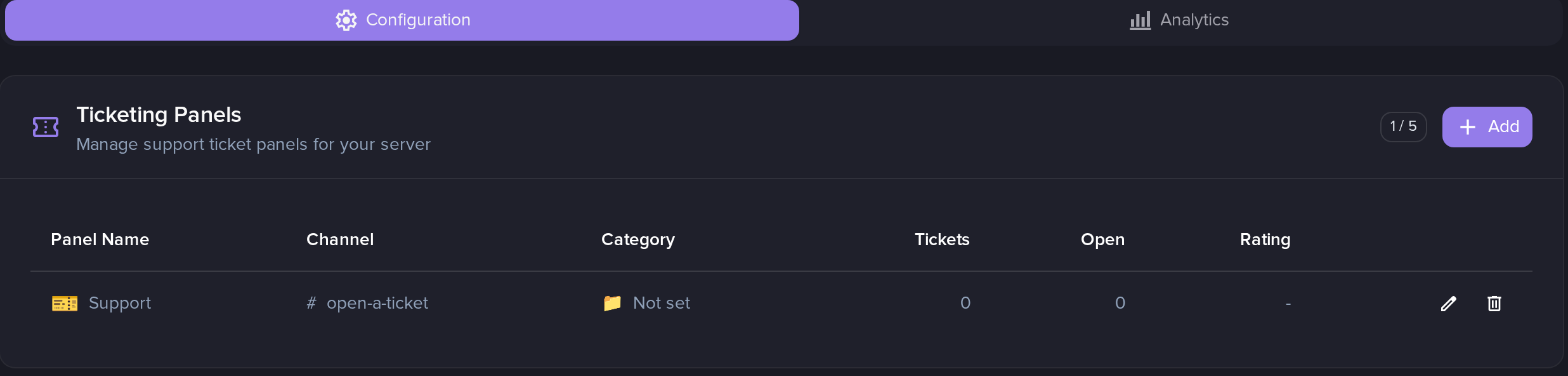
Each panel keeps its own counts and its own average rating. The Analytics tab above breaks the same numbers down further.
Saving a panel is also what publishes it. Every save posts the panel message in the channel you picked, or edits the existing one in place. If that message was deleted in the meantime, a fresh one is posted. Until you pick a channel, nothing is posted anywhere, so a half-configured panel is invisible to your members.
Channel settings
Ticket Panel Channel is where the panel message goes. Members click the
Create a ticket button on it. If the channel you picked no longer exists,
or is of a type the bot cannot post in, the bot creates a text channel named
open-a-ticket and posts there instead, so the panel is never lost. Pointing
the panel at a forum channel works too: the panel is posted as a new thread.
Logs Channel is optional. When set, the bot posts a line there each time a ticket opens and a card each time one closes, and it is where transcripts and low ratings can be sent.
Support Roles is the important one. Up to 2 roles per panel. Holders of those roles can see every ticket the panel opens, claim them, escalate them, close them, and use the ticket commands.
Leave Support Roles empty and the bot falls back to the Manage Server permission for closing. Claiming and escalating stop being restricted at all when no support role is set, so set them. Ticket channels are also created without any staff access when the list is empty, which is rarely what you want.
The two messages
They are easy to mix up.
Panel Message is the public advert: an embed titled with the panel name, described by the Embed Description you write (up to 1500 characters), and a single Create a ticket button.
The title is the panel's name, so name the panel something your members will understand. The colour is your server's embed colour, and a blurple Create a ticket button sits under the embed.
Ticket Message is what greets the member inside their new ticket. It has two parts, both up to 1500 characters:
- Message Content, posted above the card. Write
{author}in it and it becomes a real mention that pings the member. That is the only placeholder this field understands. - Embed Description, the body of the card that carries the staff buttons.
Ticket channel names
Ticket Channel Name decides what the created channel is called. The
default is {status}-{username}. Available placeholders:
| Placeholder | Becomes |
|---|---|
{status} | The status emoji, always the one for a freshly opened ticket |
{username} | The member's name |
{userid} | The member's id |
{number} | The ticket number for this panel, padded to four digits |
{panel} | The panel name |
Spaces become dashes and everything is lowercased, because Discord requires it. The name is set once, when the ticket is created, and is never changed afterwards. That is deliberate: Discord only allows two renames per channel every ten minutes, and a ticket that gets claimed, escalated and closed in a row would blow through that. A claimed ticket therefore still shows the emoji of a fresh one, so read the state from the dashboard, not from the channel name.
What happens when the member clicks
Create Behavior offers three answers:
- Create directly: the channel is created immediately.
- Ephemeral confirmation: a private message asks them to confirm first. Useful to slow down accidental clicks.
- Ask for reason: a form opens and the member has to describe their issue, between 10 and 1000 characters. The reason is quoted in the welcome message and shown on the ticket's dashboard page, so staff know what it is about before reading anything.
The last two also expose Show label selection, which adds a dropdown so the member picks what their ticket is about. With Ask for reason the choice is required; with Ephemeral confirmation it is optional. Either way a member can pick up to five.
Labels
Labels are the categories of your ticket system. Each one has a name (up to 50 characters), a colour and an optional emoji, and you can define up to 10 per panel.
They do three jobs:
- They let the member say what they need before staff read a word.
- They are shown in the welcome message of the ticket.
- They filter the ticket list on the dashboard, and they break down the analytics by label.
Labels belong to a panel, so a "Billing" label on your support panel is a different object from a "Billing" label on your applications panel. Staff can add and remove them on an open ticket from the dashboard, and the ticket channel gets a short notice each time.
Business hours
Business Hours restricts opening, not answering. Turn it on and mark the open hours on the weekly grid, hour by hour. Click a day name to toggle the whole day, or use the presets (office hours, weekdays, 24/7).
Hours are read in your server timezone, which is set in the main server configuration, not here. Outside those hours the button still exists, but clicking it returns the Closed message you wrote (up to 1500 characters) and no ticket is created. Tickets already open are untouched.
Charging for a ticket
Opening cost takes coins from your server economy every time a member opens a ticket on this panel. Leave it empty or at 0 to keep it free. It only does anything when the Economy feature is enabled.
Three things are worth knowing before you use it:
- A member who already has a ticket open on the panel is never charged for the duplicate attempt: the refusal happens before the payment.
- If the channel cannot be created, the coins are given back automatically.
- Refunding on close is a switch in the Economy settings, not here.
First-response target
First-response target is the time you would like a first reply to take, in minutes. It changes nothing at runtime: no reminder is sent and nothing is enforced. Its only job is to give the Statistics tab a bar to measure against, so you can see the share of tickets answered within it.
Once the panel is saved, read on: what happens when someone opens a ticket.
