Setting up a custom bot
A custom bot is your own Discord application running FlaviBot. Members see your name, your avatar, your banner and your status in the member list; the features, the commands and the dashboard are FlaviBot's.
It is not a second copy of your settings: the bot joins your server like any other bot, and you configure it on the same dashboard by switching the bot selector to it.
What you need
- Platinum premium. The subscription must be on your account, and Platinum
must be active on the server (
/premium activate). Platinum includes one custom bot. - A Discord application of your own, created on Discord's developer portal, with all three privileged intents enabled.
The Custom Bot page is in the sidebar under Miscellaneous. Without Platinum it shows a locked preview.
Creating the application
This part happens on Discord's side, at discord.com/developers/applications.
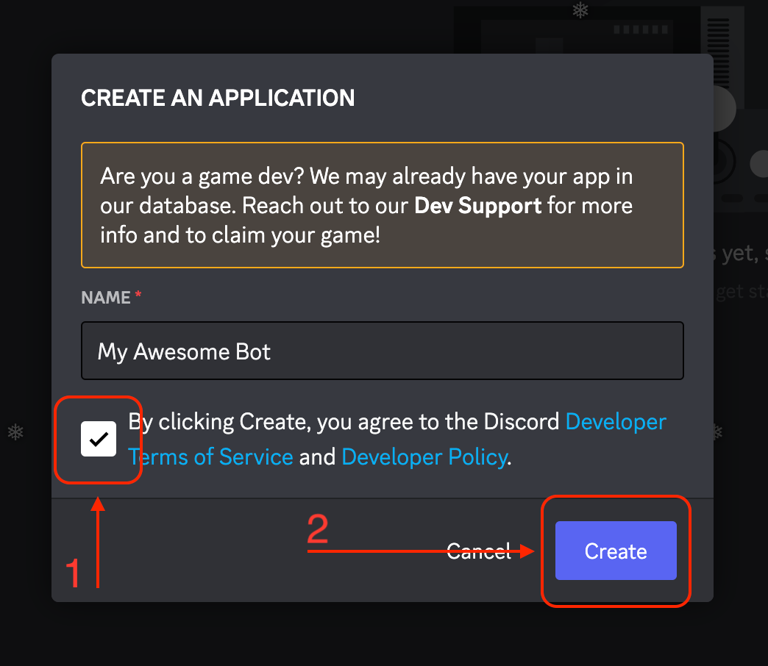
1. Create a new application. Press New Application, give it a name and accept Discord's terms. The name is not final, you can change it later.
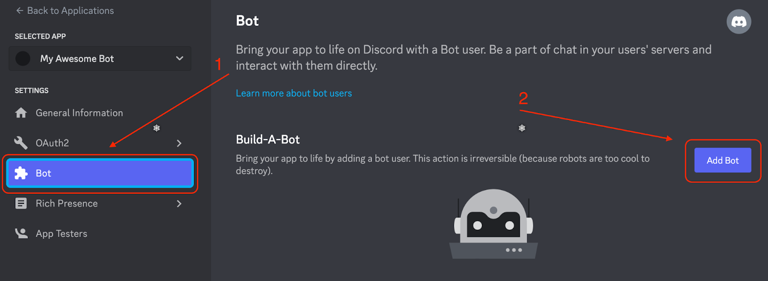
2. Add a bot to it. Open the Bot tab of your application.
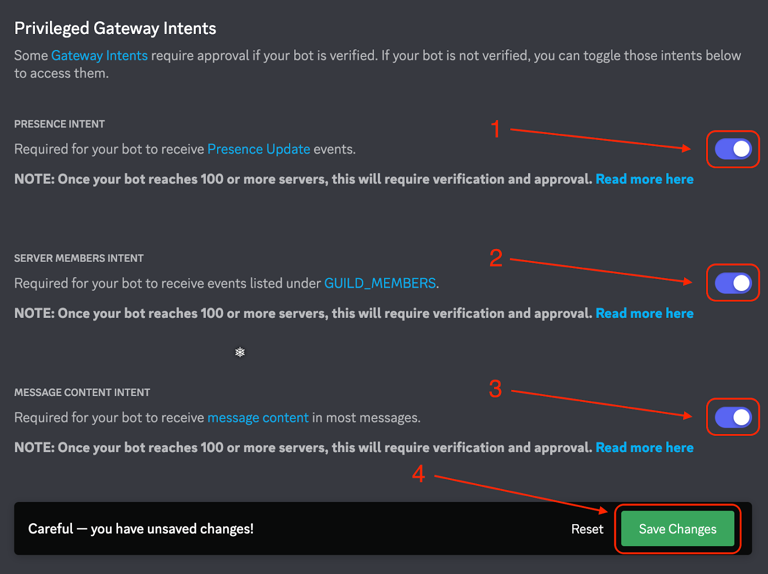
3. Enable the three intents. Scroll to Privileged Gateway Intents and turn on Presence Intent, Server Members Intent and Message Content Intent. FlaviBot refuses a token whose application is missing any of them, and tells you which ones.
4. Copy the token. Press Reset Token to reveal it, confirm, then copy the value.
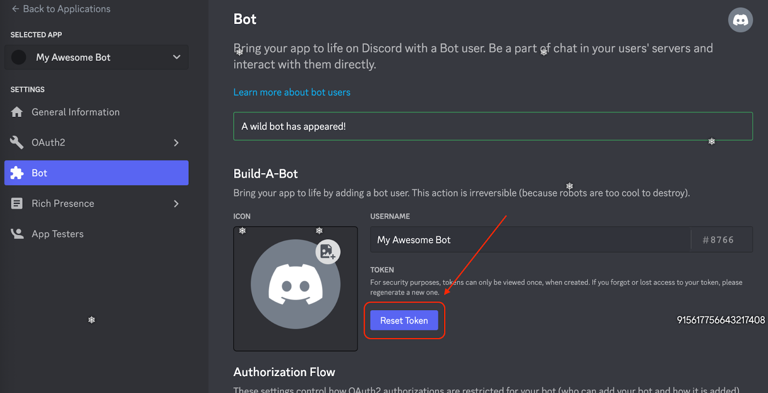
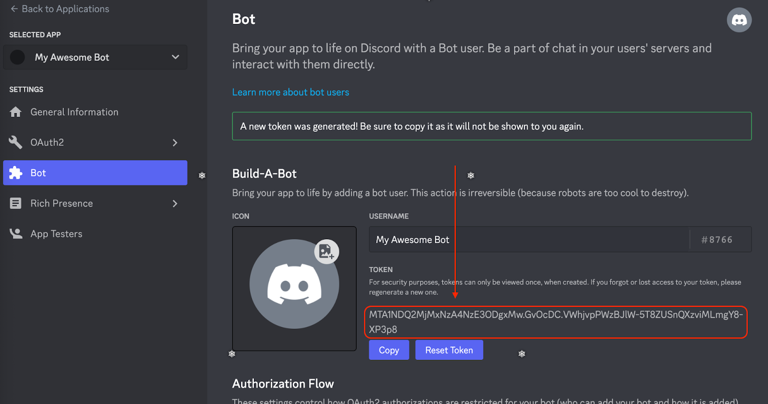
The token is the password to your bot. Anyone holding it controls the bot entirely. Never paste it anywhere except the dashboard field below, and reset it in the portal if you think it leaked.
Connecting it
- Dashboard → Custom Bot, then press Add Custom Bot: the token dialog opens straight away. (The enable switch only exists once a custom bot has been created; flipping it on afterwards starts that bot.)
- Paste the token and press Save Token. FlaviBot checks it against Discord, reads the application's intents, and stores it encrypted. A bad token answers Invalid token and nothing is saved.
- The bot starts. A progress line shows it connecting to Discord, then the badge next to the title turns Online.
- A line under the title says whether the bot is actually in your server. If it is not, use the Add your bot link next to it. That invite asks for Administrator, and it targets this server directly.
Two refusals worth recognising:
- Cannot change token while bot is running. Stop the bot first. Turn the switch off, change the token, turn it back on.
- This bot is already running. Stop it first. The same application is already connected somewhere.
If the badge stays offline and a warning mentions the gateway being unavailable, the bot cannot connect right now. That is on FlaviBot's side, not on yours.
Making it yours
On the same page:
| Setting | Notes |
|---|---|
| Bot username | 2 to 32 characters |
| Avatar | image file, up to 8 MB |
| Banner | image file, up to 8 MB, 600x200 recommended |
| Status | Online, Idle or Do Not Disturb |
| Activity | Playing, Streaming, Listening, Watching or Competing |
| Activity text | up to 100 characters |
| Embed colour | the colour of the bot's embeds |
Name, avatar and banner are pushed to Discord through the running bot, so the bot has to be online for those three to save.
The activity text accepts variables, replaced live:
| Variable | Value |
|---|---|
{guild.name} | the server name |
{guild.id} | the server id |
{guild.member_count} | the member count |
{bot.name} | the bot's name |
{music.title} | the playing track's title |
{music.author} | the playing track's artist |
{music.duration} | the playing track's length |
Discord only renders the Streaming activity as streaming when it carries a valid Twitch or YouTube link, so that activity type asks for a stream URL and the dashboard rejects anything else.
Everything else
Prefix, language, welcome messages, levels, tickets: all of it is configured exactly as for an official bot, from the normal dashboard pages, with the bot selector switched to your custom bot. Settings are stored per bot, so your custom bot starts from defaults rather than inheriting what you set on FlaviBot.
The Server Bot Profile page (a Gold feature that changes an official FlaviBot's nickname and avatar for one server) does not apply here, and says so: a custom bot already has its own identity, set on the Custom Bot page.
Stopping, restarting, deleting
- The switch turns the bot off. Doing that while it is online asks for confirmation first, then the bot goes offline and stops answering.
- Restart disconnects and reconnects it, which is the usual answer to a bot that has gone strange.
- Delete removes the custom bot configuration and stops the bot. The Discord application stays yours, on the developer portal.
Starting, stopping and deleting are open to the bot's owner and to anyone who can open that server's dashboard, not only to the person whose subscription pays for it. Worth knowing before handing dashboard access out.
A custom bot belongs to the server it was created for. To run it in a different server, delete it and set it up again from that server's dashboard.
