Finding your dashboard
Almost every FlaviBot setting lives on the web dashboard, not behind a command.
Opening it
Go to flavibot.xyz/dashboard and log in with Discord. You land on Select a Server, a grid of the servers you can configure, with a search box. Each card has either Configure Dashboard (FlaviBot is in that server) or Add FlaviBot (it is not yet).
From inside Discord, /dashboard replies with the direct link to that
server's dashboard, which saves you the picking step.
Configure Dashboard drops you on Configuration, the page that holds the server-wide basics: language, prefix, timezone, who may use commands where, and dashboard access.
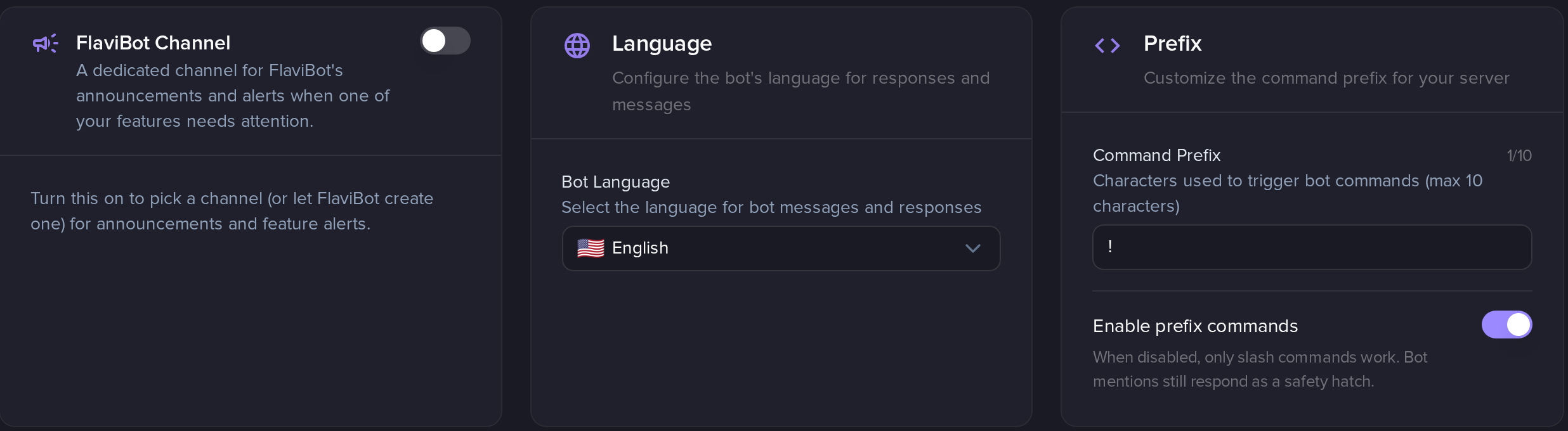
The first three cards of the Configuration page.
Who is allowed in
A server appears in your list when you have the Manage Server permission on it (the server owner and anyone with Administrator qualify), or when someone with Manage Server has explicitly granted you access.
That grant is on Configuration → Dashboard Access: up to 50 roles and up to 50 users who can open this server's dashboard without holding Manage Server. Only someone with real Manage Server can edit that list, so granted access cannot be used to widen itself.
Ticket staff get a narrower door: they see the ticket pages rather than the whole dashboard. That is covered with the ticketing module.
Every connection and every save is recorded on FlaviBot Management → Access Logs: who connected, what they changed, and whether the attempt was allowed or denied.
One dashboard, several bots
FlaviBot exists as several bot accounts, and a server can hold more than one of them. Settings are stored per bot. The bot selector at the top of the dashboard decides which one you are configuring, and the Configuration page states it plainly: You're configuring FlaviBot.
This matters in practice. A prefix, a language or a welcome message saved while FlaviBot is selected does not apply to FlaviBot 2 in the same server. Levels is the exception: there is one levels configuration per server, and saving it hands XP processing to whichever bot is selected rather than creating a second config. If a setting seems not to take effect, check the selector first. The same rule is what makes a custom bot configurable: you switch the selector to it and configure it like any other.
Nothing saves by itself
Changing a field on a dashboard page does not apply it. A bar appears at the bottom telling you there are unsaved changes, with Save Changes and Reset. Leaving the page with the bar open loses the edits.
A handful of controls act immediately instead, and they say so: starting or stopping a custom bot, and the module activation dialog described in turning things on and off.
Reading the sidebar
The left menu is grouped by theme: FlaviBot Management, Miscellaneous, Statistics, Music, Moderation, Server Management, Tickets, Engagement, Automation, Utilities, Notifications.
Each module entry carries a small status dot, so you can tell at a glance what is on, what is off, and what is broken. See turning things on and off for what each colour means.
If the server will not load
The dashboard distinguishes the cases rather than showing one generic error:
- The bot is not connected to this server. Add it, or switch the bot selector to a bot that is actually in the server.
- No permission. You lost Manage Server, or the dashboard access list changed.
- Server not found. The bot is not in it at all.
