Welcome and goodbye messages
The first thing a new member sees decides whether they read your rules or close the tab. This feature covers everything that happens the moment someone joins, and the one thing that happens when they leave.
Everything here lives on one dashboard page: Server Management > Welcome & Goodbye. Each block below is a card on that page with its own on/off switch, and they are independent: you can run the join role without any message, or a goodbye message without a welcome.
What fires when someone joins
Up to four things, all at once and independently of each other.
| Block | What it does |
|---|---|
| Auto Role | Gives the new member up to 3 roles |
| Welcome Message | Posts a public message, optionally with a card image |
| Greet | Posts a bare mention that pings the member, then deletes it |
| Join DM | Sends the member a private message |
And when someone leaves, the Goodbye Message block posts a public message, optionally with its own card image.
Auto Role
Pick up to 3 roles. Every human who joins gets all of them. Bots are skipped.
Two rules from Discord apply and are enforced silently: a role that sits at or above the bot's own highest role cannot be given, and neither can a role Discord manages itself (a booster role, a role owned by another bot, a Twitch subscriber role). Roles in that situation are skipped and the rest are still applied.
The dashboard also refuses to save a role you could not grant yourself. That stops a moderator with dashboard access from quietly making the autorole hand out administrator.
Welcome Message and Goodbye Message
Both work the same way. Choose the channel, choose whether to attach the card image, then write the message.
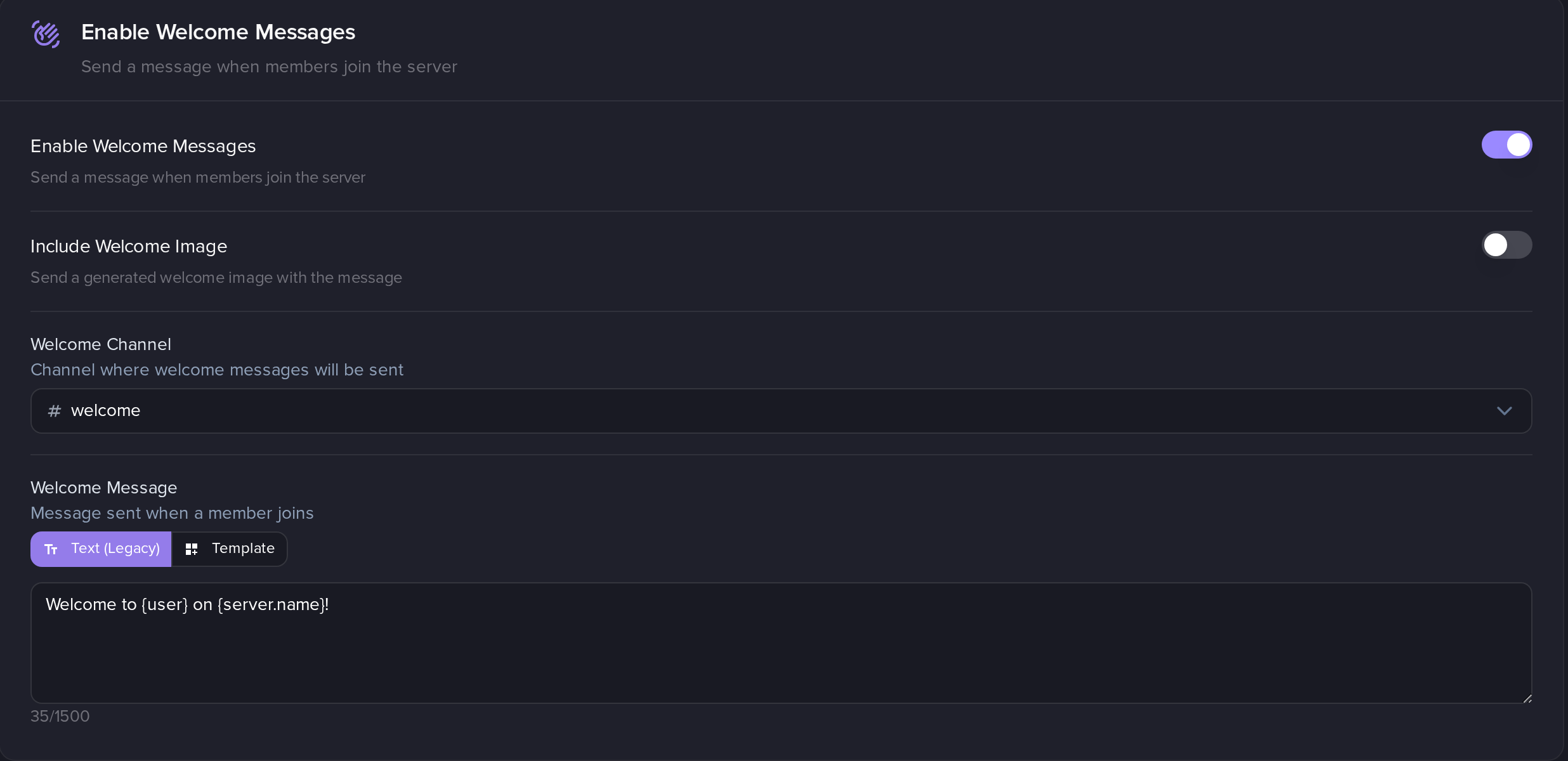
The goodbye card below it holds the same four controls.
The message, in Text mode, is a plain message of up to 1500 characters with variables. If you leave it empty, the defaults are:
- welcome:
Welcome to {user} on {server.name}! - goodbye:
{user.name} left the server!
In Template mode you pick an embed you built on the Embed Messages page instead, and the variables are filled in there too.
The image is a generated card showing the member's avatar, name and your server. It is a separate switch from the message, so you can have a message with no card, or a card with a one-word message. See below for how to design it.
The channel can be a text channel, a voice or stage channel's text chat, a
forum or a media channel. Point it at a forum and each join opens its own
thread, named Welcome <username> (or Goodbye <username>). Point it at one
specific thread inside the forum instead and everything goes into that thread.
Greet
A separate, deliberately noisy notification: the bot posts a message that is nothing but a mention of the new member, which pings them, and deletes it 5 seconds later.
The point is the ping, not the message. It pulls the member's attention to a channel (usually the one where the real welcome message lives) without leaving a trail of pings behind.
There is no message to write here, only a channel to choose. If you choose a forum channel, the greet opens a thread and deletes the ping inside it; the thread itself stays.
Join DM
A private message to the member, up to 2000 characters, using the same variables as the public message.
Many Discord users have direct messages from servers turned off, and the bot cannot override that. When a member's DMs are closed the message is simply skipped: it is not an error, it does not retry, and it never counts against the feature's health.
Variables
Type these anywhere in a welcome, goodbye or join DM message.
| Variable | Becomes |
|---|---|
{user} | A mention that pings the member |
{user.name} | Their username |
{user.id} | Their numeric Discord id |
{user.created_at} | When their Discord account was created, as a relative timestamp |
{user.avatar} | A direct link to their avatar image |
{server.name} | Your server's name |
{server.member_count} | The member count, with thousands separators |
{member.joined_at} | When they joined, as a relative timestamp |
These also exist, but only on join, and only when the Invite Tracker is turned on and FlaviBot could attribute the join to an inviter:
| Variable | Becomes |
|---|---|
{inviter} | A mention of the member who invited them |
{inviter.name} | The inviter's username |
{inviter.invites} | The inviter's invite count after this join |
Three notes worth knowing before you use them:
{member.joined_at}and{user.avatar}are filled in on join only. In a goodbye message they stay in the text as literal{member.joined_at}.{user.avatar}also needs the member to have set an avatar of their own; a member on the Discord default avatar leaves the variable unreplaced.- The invite variables never appear on a goodbye either, and on a join they only resolve when the invite was matched. Write the message so it still reads correctly without them.
{user.name}is the one to reach for when you want a plain name. FlaviBot also accepts{user.tag}and{user.display_name}, but since Discord retired the#1234discriminator they render asName#0and as the username respectively.
The greet card
The card is the image attached to a welcome or goodbye message. Turn the image switch on and you get a built-in design showing the member's avatar, a heading, their name, your server and the member count. No setup needed.
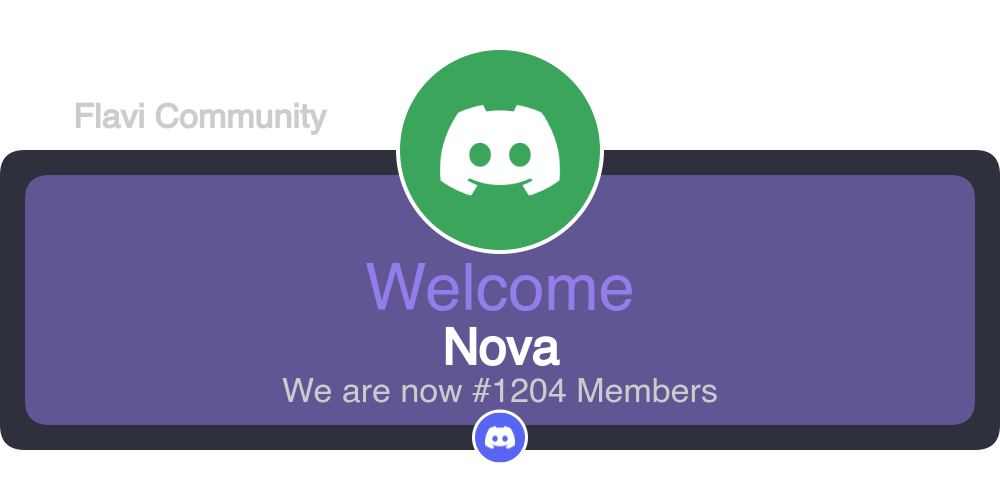
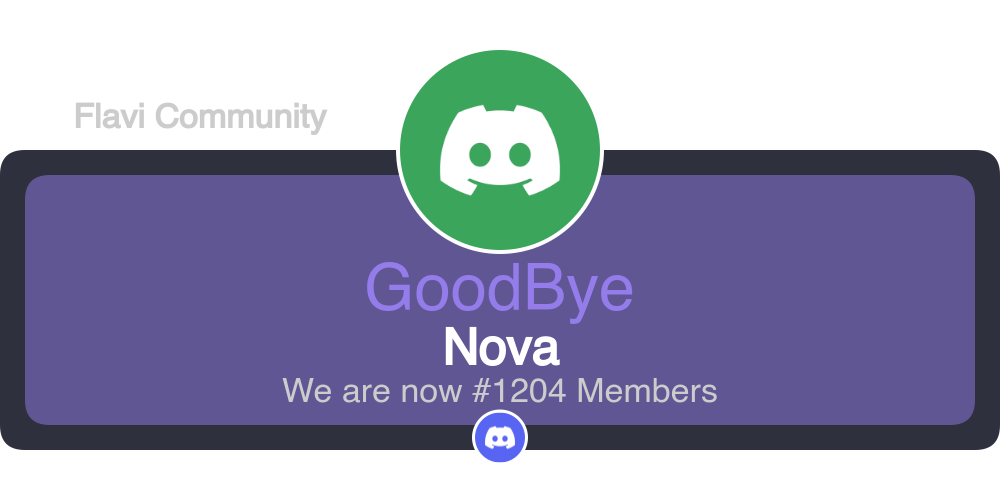
The member above has no avatar of their own, so Discord's default one is drawn; a member with an avatar gets theirs. The small circle at the bottom is your server icon.
To design your own, scroll to Welcome Card Customization on the same dashboard page. You get a grid holding the Default Preset plus any templates you have made, and the one marked Active is the one that gets used. Use Default puts you back on the built-in design.
Create Template opens a visual editor on a blank 950 by 300 canvas, where a card is a stack of layers: a background, decorations, shapes, the avatar, and text. You drag things around, restyle them, and save.
Inside a text layer you can use these placeholders, written with double braces:
| Placeholder | Becomes |
|---|---|
{{greeting}} | Welcome on a welcome card, Goodbye on a goodbye card |
{{user.username}} | The member's name |
{{guild.name}} | Your server's name |
{{memberInfo}} | Member #1234 on welcome, 1234 members remaining on goodbye |
Each row in the grid also lets you duplicate a template, save it to your profile so you can reuse the design on another server, or delete it.
How many templates you can keep, and how many layers each can hold, depends on your server's premium tier:
| Free | Silver | Gold | Platinum | |
|---|---|---|---|---|
| Card templates | 3 | 10 | 20 | 50 |
| Layers per template | 15 | 25 | 35 | 50 |
One limitation to know: the template picker currently drives the welcome card. Turning on the goodbye image gives you the built-in goodbye design.
When the welcome system switches itself off
The join role, the welcome message, the greet and the goodbye message all share one health counter. If they fail for a permanent reason 10 times in a row and that streak has lasted at least 48 hours, the whole Welcome & Goodbye feature is switched off and the page shows a red banner with the reason.
The usual causes are a deleted channel, a bot that lost Send Messages or Embed Links in the target channel, or an autorole that was moved above the bot's own role. Fix the cause, then press Reactivate on the banner. Saving the page also clears the error state.
A join DM that could not be delivered is never counted here, because a closed DM is the member's choice and not a misconfiguration.
